User Guide
Everything LLM Masker does, free and PRO — in the order you'll meet it.
Getting started
Install LLM Masker from the Chrome Web Store and you're done — protection is on by default, there's nothing to configure and no account to create. The welcome page confirms you're protected:
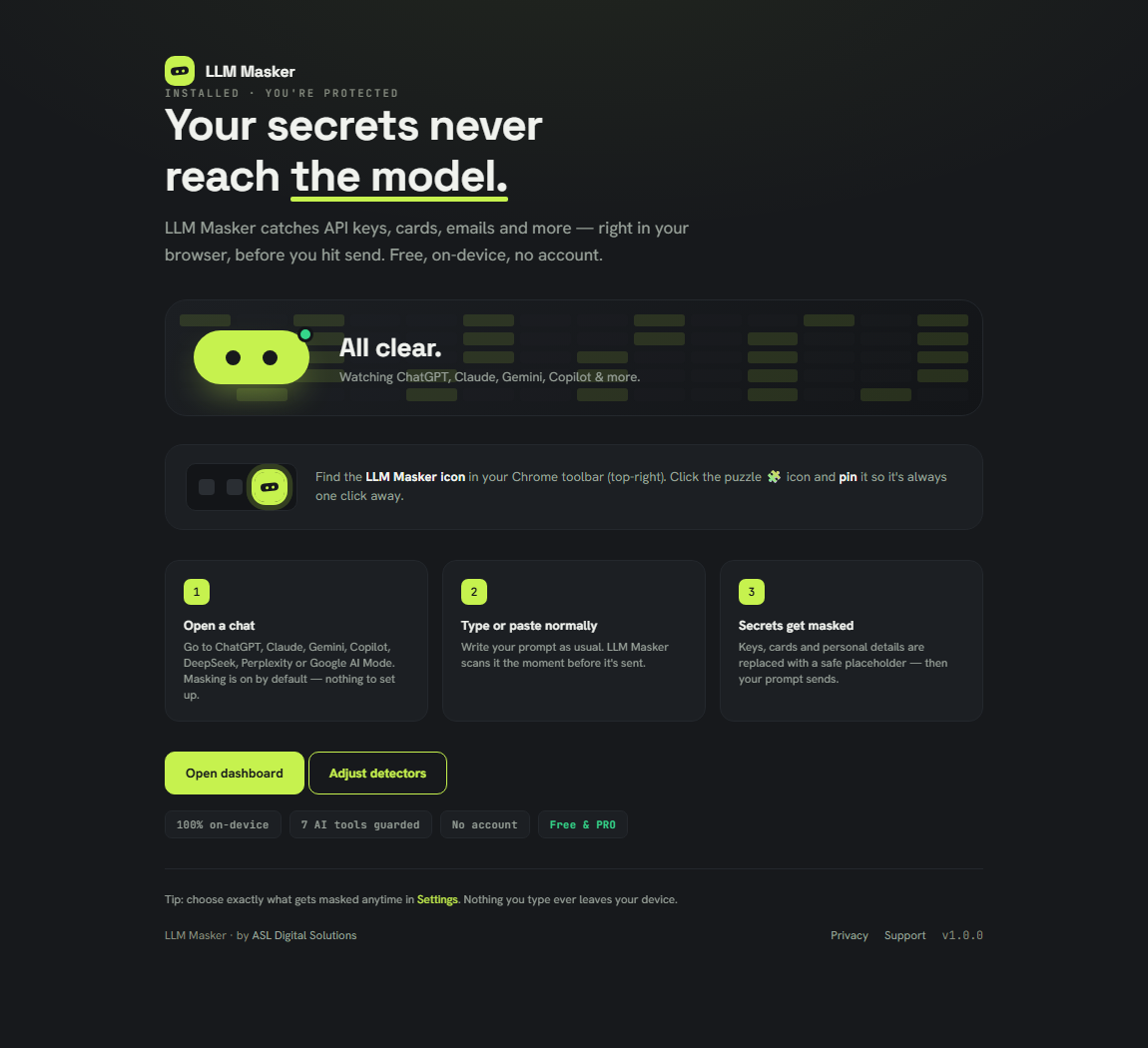
One tip worth taking: click the puzzle 🧩 icon in Chrome's toolbar and pin LLM Masker, so the mask is always one click away.
From that moment, LLM Masker watches the prompt box on ChatGPT, Claude, Gemini, Copilot, DeepSeek, Perplexity and Google AI Mode — and nowhere else.
The popup
Click the toolbar icon for the live view:
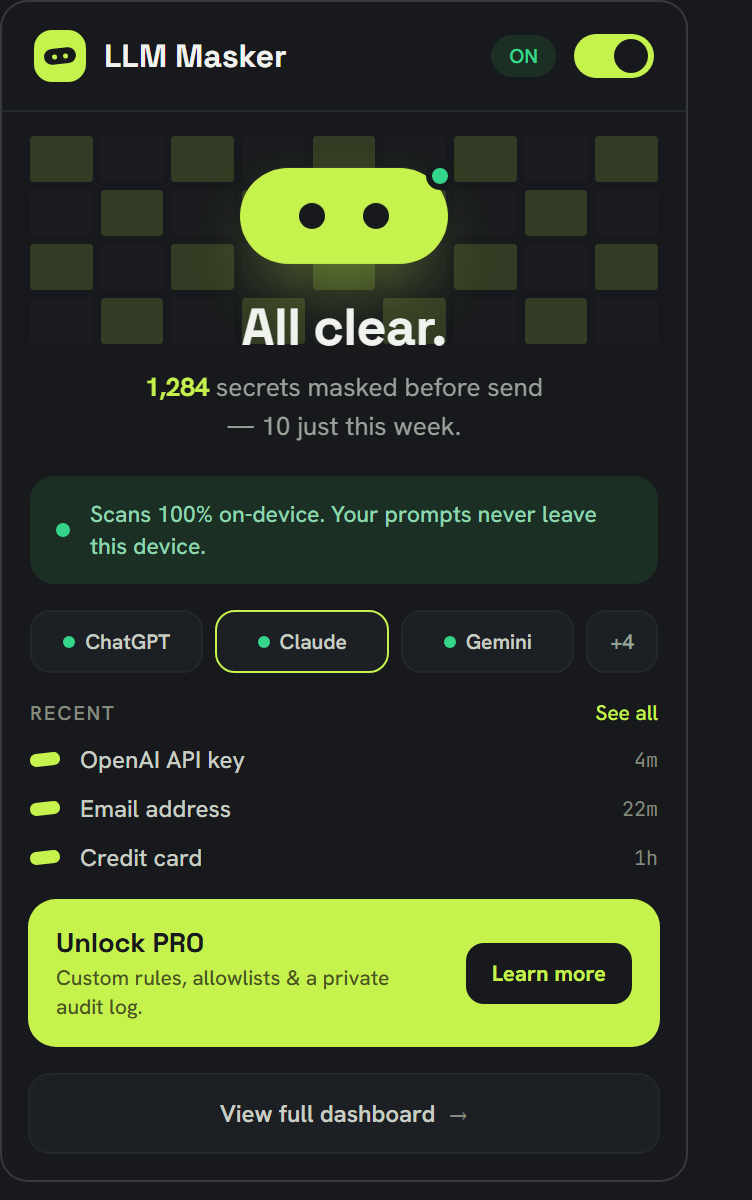
- The switch (top right) pauses or resumes masking on every tab, instantly — no reload needed.
- The counters show total secrets masked and this week's count.
- Site pills show what's guarded — tap +3 to flip between the two sets of sites.
- Recent lists the last few masks (only the type, never the value).
How masking works
LLM Masker scans your prompt on your device and replaces anything sensitive with a safe placeholder:
[REDACTED_BY_LLM_MASKER]
It runs at three moments:
- On paste — pasted text is scanned before the page's editor even sees it. Paste a config file with an AWS key in it; the key never appears.
- While typing — as you type, completed patterns are masked on the spot (you can turn this off in Settings if you prefer).
- At send — pressing Enter or the send button always triggers a final scan-and-mask before the prompt leaves. This safety net is always on while protection is enabled.
What's detected — 13 groups, each with its own toggle in Settings:
- AI provider API keys — OpenAI, Anthropic, Google (new Gemini
AQ.Ab…auth keys and classicAIza…keys for Gemini / Firebase / Maps), ElevenLabs, Hugging Face, Groq, Perplexity, xAI, OpenRouter, Replicate, Pinecone, LangSmith, Tavily. - Cloud credentials — AWS access keys & secrets, Google OAuth tokens & client secrets, Azure client secrets & storage keys, DigitalOcean, Alibaba Cloud, HashiCorp Vault, Terraform Cloud.
- Developer platform tokens — GitHub, GitLab, npm, PyPI, Docker Hub, Vercel, Sentry, New Relic, Postman, Grafana, Doppler, Databricks, Linear, Notion, Airtable, Figma, Atlassian, SonarQube, Pulumi, Fly.io, PlanetScale, Supabase, Contentful, Prefect, Sourcegraph, Adobe.
- Payment & commerce keys — Stripe / Clerk secret keys, Stripe webhook secrets, Razorpay, Square, Shopify, PayPal / Braintree.
- Messaging & webhook tokens — Slack tokens & webhook URLs, Discord bot tokens & webhooks, Telegram bot tokens, Twilio, SendGrid, Mailgun, Mailchimp, Meta and X access tokens.
- Private keys — RSA / EC / OpenSSH / PGP private-key blocks, PuTTY and age keys. The whole block is masked, header to footer.
- Connection strings — database, cache, queue and HTTP URLs with a password in them (
postgres://user:pass@…,mongodb+srv://,redis://,amqp://,jdbc:…). - Passwords & generic secrets —
password=,DB_PASSWORD:,"api_key": "…",client_secret => …in any language or config file;Authorization: Bearer / Basicandx-api-keyheaders;curl -u user:pass. This is also how keys without a recognisable shape (Cohere, Mistral, DeepSeek…) get caught — the moment they're assigned to something. Code identifiers liketoken = accessTokenare left alone. - JWT tokens, emails & phone numbers.
- Credit cards & bank accounts — card numbers (checksum-verified, spaced or not) and IBANs (country + mod-97 verified).
- National ID numbers — US SSN, India Aadhaar (checksum-verified) and PAN, UK National Insurance, Canadian SIN.
- IP addresses — public IPv4; off by default because so many prompts include IPs on purpose.
Detection is deliberately conservative: every pattern is anchored to a vendor's key shape, a checksum, or an assignment context, so ordinary prose and code sail through untouched. Mixed clipboard content with images passes through so attachments keep working.
Settings
Right-click the toolbar icon → Options (or open Settings from the popup):
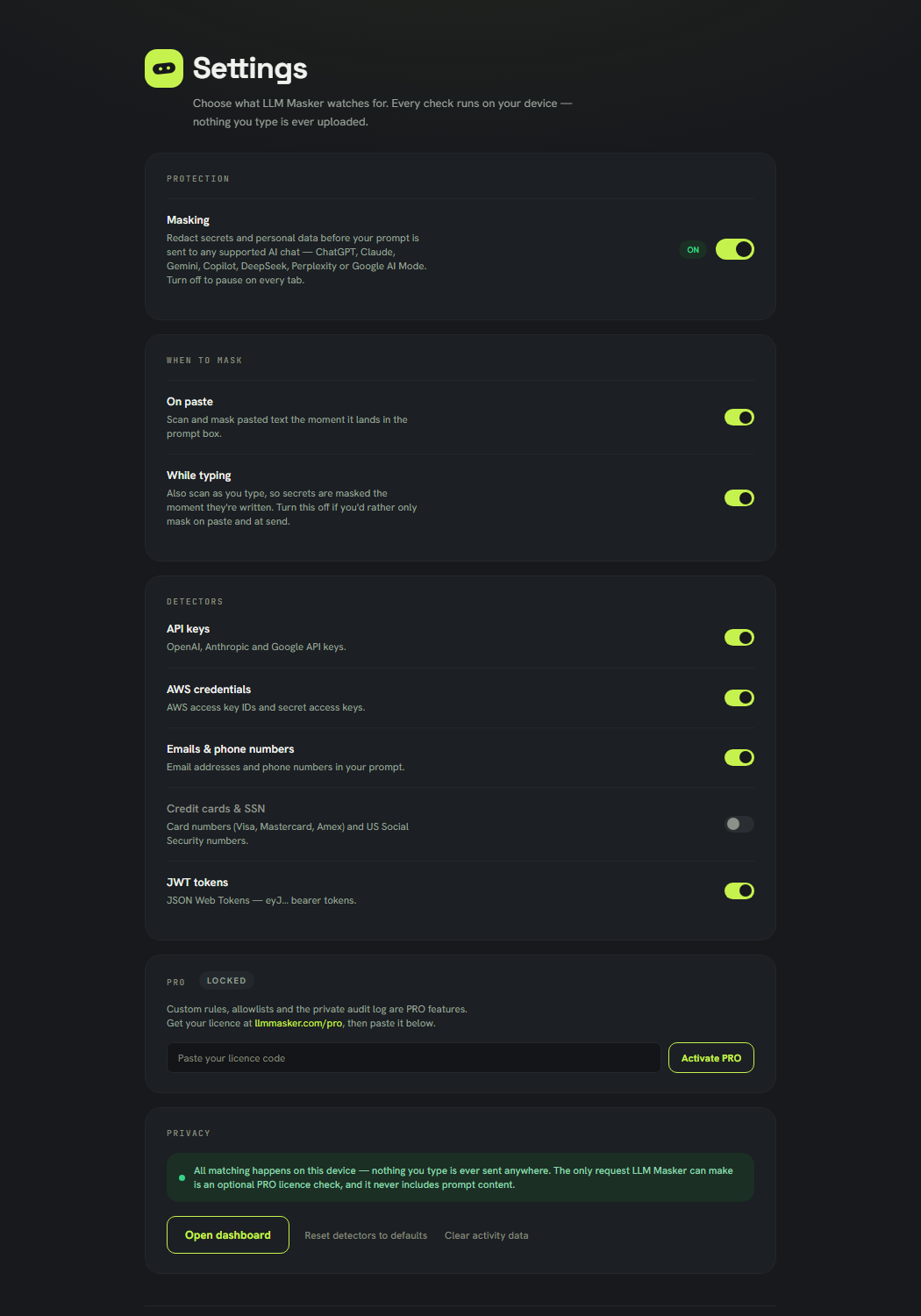
- Protection — the master switch, same as the popup's.
- When to mask — choose whether scanning happens on paste and/or while typing. Send-time masking always runs.
- Detectors — toggle each category independently. Turned something off by mistake? Reset detectors to defaults at the bottom.
- Clear activity data — wipes your local stats and history (two clicks — the second confirms).
Dashboard
The popup's View full dashboard button opens the full picture:
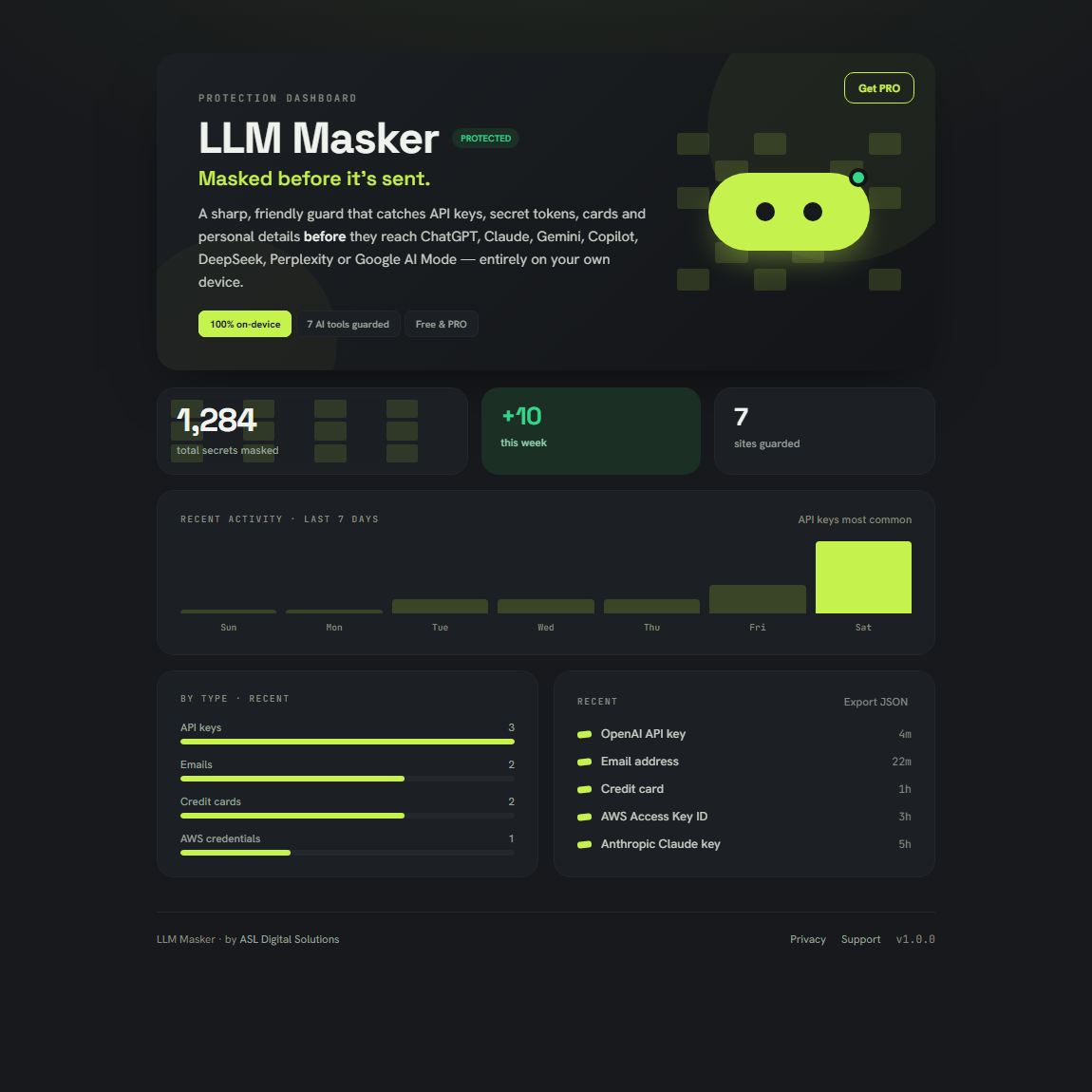
- Totals and the 7-day chart show your masking activity at a glance.
- By type breaks recent masks down by category.
- Export JSON downloads your activity log — labels and timestamps only, never the masked values.
PRO
Everything above is free, forever. PRO adds control on top. Once your licence is active, the PRO section in Settings unlocks:
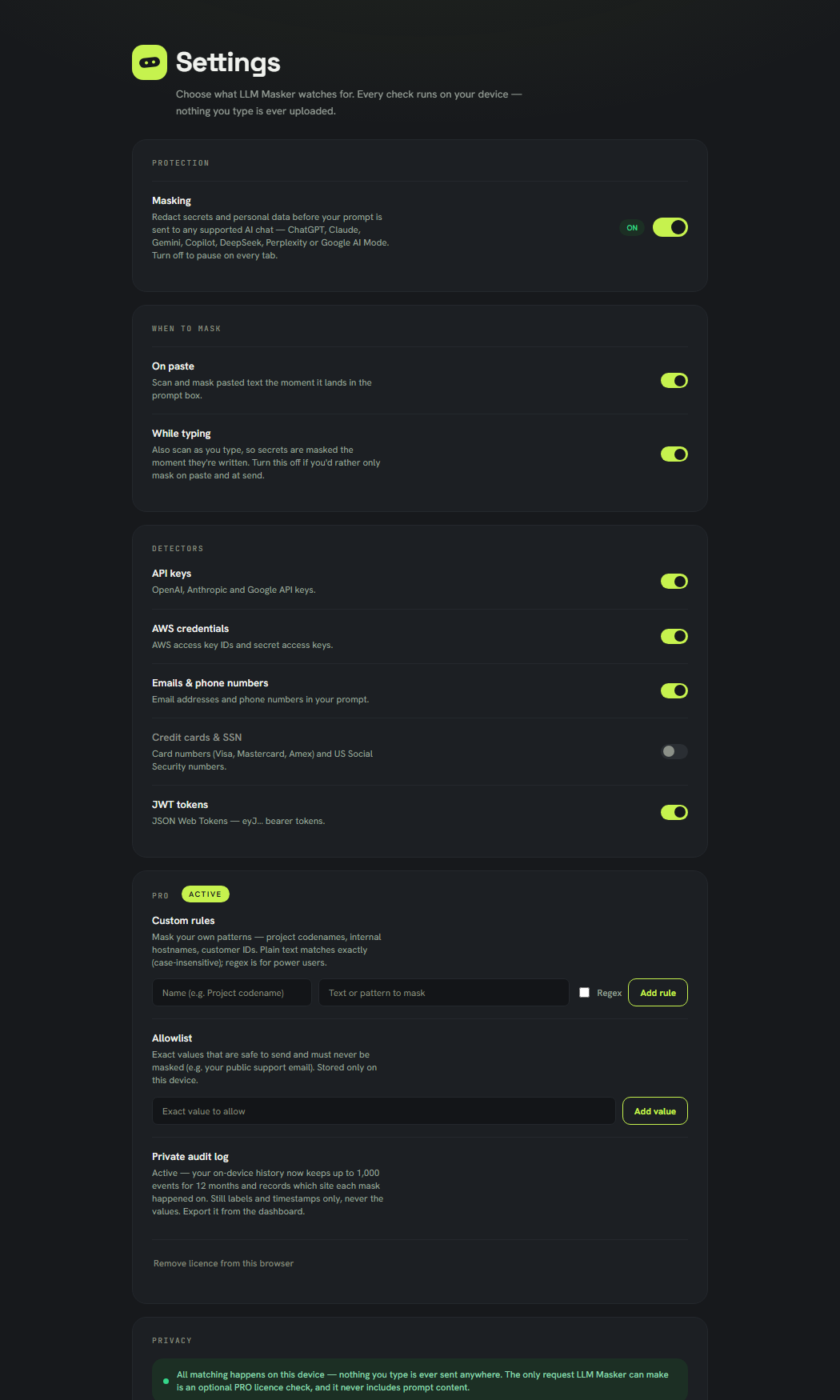
Custom rules
Mask your own patterns — project codenames, internal hostnames, customer IDs. Give the rule a name, enter the text to match (case-insensitive), or tick Regex for full pattern power. Custom matches are masked exactly like built-in detectors, and appear in the dashboard under "Custom rules".
Allowlist
Exact values that are safe to send and must never be masked — for example your public support email. Allowlist wins over every detector, including your own rules. Values are stored only on your device.
Private audit log
Your on-device history grows from 50 events / 30 days to 1,000 events / 12 months, and each entry records which site the mask happened on. Still labels and timestamps only. Export it from the dashboard.
Buying & activating
- Pick a plan at llmmasker.com/pro and pay through Razorpay (UPI, cards or netbanking in India; cards internationally).
- After checkout you land on the activation page with your licence code — copy it (it's also reachable again from your Razorpay receipt).
- Open the extension's Settings → PRO, paste the code, click Activate PRO. The pill flips to ACTIVE.
The licence re-verifies automatically in the background. Cancelling: use the subscription-management link in your Razorpay receipt email, or contact support — PRO stays active until the end of the period you paid for. See the refund policy.
Troubleshooting
- Something wasn't masked / was masked wrongly — see the answers on the Support page; detection is pattern-based and tunable per detector.
- PRO shows LOCKED after you paid — check your connection and re-paste the licence code from your activation page. Still stuck? Email us with your Razorpay payment ID.
- Anything else — support@llmmasker.com, replies within two business days.